1 What the file is for
You can add predefined settings to an application's source folder before the application is imported through SoftwareCentral.
The settings are read from an XML file. When the Application Wizard reads the source folder, it fills in the fields from the file. You can still change any value before you finish.
The Application Wizard and the Create Application window read the file. So do the Create Multiple Applications page, the Deployment Type wizard and the Package wizard.
2 Where the file goes
The file must be named SoftwareCentral.xml and located in the same folder as the installation file.
The wizard searches the source folder and its subfolders, and uses the first SoftwareCentral.xml it finds. Keep only one file of that name in the folder.
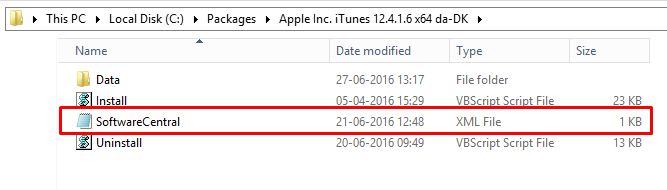
3 What the file can contain
The file can contain information about name, installation and uninstall programs and detection methods.
| Element | What the wizard fills in |
|---|---|
| Manufacturer, Name, Version, Language (inside Naming) | The manufacturer, name, version and language of the application. |
| InstallExecutable, InstallExecutableParameters | The install program and its parameters. |
| UninstallExecutable, UninstallExecutableParameters | The uninstall program and its parameters. |
| MsiInstallParameters, MsiUninstallParameters | The parameters for a Windows Installer (MSI) install and uninstall. |
| ProductCode | The product code of a Windows Installer package. |
| RepairProgram | The program that repairs the application. |
| ApplicationTemplate | The name of an application template to use. The template is loaded when the name matches one in SoftwareCentral. |
| SoftwareOrderOptions | The shop details of the application, such as its description, price and categories. |
Each detection method is a DetectionMethod element with a Type attribute:
| Type | Elements it reads |
|---|---|
| WindowsInstaller | ProductCode. |
| Registry | RegistryRootKey, Key, Value, Is64Bit. Optional: KeyOperator and KeyValue. |
| FileSystem | FileOrFolderName, Path, Is64Bit, IsFile. |
| Script | Language, ScriptFile, RunAs32bit. The script file is read from the same folder as the XML file. |
If you add multiple detection methods, they are created with an "or" operator in SCCM. The examples below both have several detection methods, so you can see how to configure each detection method type.
4 Example: Windows Installer application
An example for an MSI package. Save it as SoftwareCentral.xml next to the installation file.
<?xml version="1.0" encoding="utf-8"?>
<ImportApplication>
  <Naming>
    <Manufacturer>Adobe</Manufacturer>
    <Name>Reader XI (11.0.13) (2)</Name>
    <Version>11.0.13</Version>
    <Language>en-US</Language>
  </Naming>
  <DeploymentType>
    <MsiInstallParameters>msiexec /i "AcroRead.msi" /q TRANSFORMS="AcroRead.mst"</MsiInstallParameters>
    <ProductCode>{AC76BA86-7AD7-1033-7B44-AB0000000001}</ProductCode>

    <DetectionMethod Type="WindowsInstaller">
      <ProductCode>{AC76BA86-7AD7-1033-7B44-AB0000000001}</ProductCode>
    </DetectionMethod>

    <DetectionMethod Type="Registry">
      <RegistryRootKey>HKEY_LOCAL_MACHINE</RegistryRootKey>
      <Key>SOFTWARE\Microsoft\Windows\CurrentVersion\Uninstall\{AC76BA86-7AD7-1033-7B44-AB0000000001}</Key>
      <Value>DisplayVersion</Value>
      <Is64Bit>false</Is64Bit>
      <KeyOperator>IsEquals</KeyOperator>
      <KeyValue>11.0.13</KeyValue>
    </DetectionMethod>

    <DetectionMethod Type="FileSystem">
      <FileOrFolderName>AcroRd32.exe</FileOrFolderName>
      <IsFile>true</IsFile>
      <Path>%ProgramFiles(x86)%\Adobe\Reader 10.0\Reader</Path>
      <Is64Bit>false</Is64Bit>
    </DetectionMethod>

  </DeploymentType>
</ImportApplication>
5 Example: script application
An example for a script package, with an install script and an uninstall script.
<?xml version="1.0" encoding="utf-8"?>
<ImportApplication>
  <Naming>
    <Manufacturer>Adobe</Manufacturer>
    <Name>Reader XI (11.0.13) (2)</Name>
    <Version>11.0.13</Version>
    <Language>en-US</Language>
  </Naming>
  <DeploymentType>
    <InstallExecutable>cscript.exe "Install.vbs"</InstallExecutable>
    <UninstallExecutable>cscript.exe "Uninstall.vbs"</UninstallExecutable>

    <DetectionMethod Type="WindowsInstaller">
      <ProductCode>{AC76BA86-7AD7-1033-7B44-AB0000000001}</ProductCode>
    </DetectionMethod>

    <DetectionMethod Type="Registry">
      <RegistryRootKey>HKEY_LOCAL_MACHINE</RegistryRootKey>
      <Key>SOFTWARE\Microsoft\Windows\CurrentVersion\Uninstall\{AC76BA86-7AD7-1033-7B44-AB0000000001}</Key>
      <Value>DisplayVersion</Value>
      <Is64Bit>false</Is64Bit>
      <KeyOperator>IsEquals</KeyOperator>
      <KeyValue>11.0.13</KeyValue>
    </DetectionMethod>

    <DetectionMethod Type="FileSystem">
      <FileOrFolderName>AcroRd32.exe</FileOrFolderName>
      <IsFile>true</IsFile>
      <Path>%ProgramFiles(x86)%\Adobe\Reader 10.0\Reader</Path>
      <Is64Bit>false</Is64Bit>
    </DetectionMethod>

  </DeploymentType>
</ImportApplication>
6 Best practice
- Keep one SoftwareCentral.xml per application folder. The wizard uses the first file it finds in the folder and its subfolders, so a stray copy in a subfolder can supply the values.
- Use the Windows Installer detection for MSI packages. The product code is the most exact check. Add other detection methods only as extra proof: they are combined with "or", so one method that matches is enough.
- Put every script file next to the XML file. A ScriptFile is read from the folder of SoftwareCentral.xml.
- Check the values in the wizard before you finish. The wizard fills in only what the file contains; anything missing stays empty.
- Make the file valid XML. A file that cannot be read is logged and nothing is filled in.
7 Troubleshooting
| Symptom | Cause | What to do |
|---|---|---|
| The fields stay empty, although the file is in the folder. | The file is not named exactly SoftwareCentral.xml. Windows hides the extension by default, so a name such as SoftwareCentral.xml.txt looks right in Explorer. | Turn on file name extensions in Windows Explorer, and rename the file to SoftwareCentral.xml. |
| "Failed to read data from '...'." in the SoftwareCentral Log | The file cannot be read or is not valid XML. | Open the file in an XML editor and fix the error. The wizard keeps what it read for your web session, so start a new web session before you try again. |
| "Failed to load meta data from the SoftwareCentral.xml file." in the Log | An error occurred while the Application Wizard read the file. | Same as above: check the XML, then start a new web session. |
| "Failed to read detection method from xml file." in the Log | A detection method is missing an element it needs, for example Is64Bit or IsFile, or a ScriptFile cannot be found. | Add the missing element exactly as shown in the examples, and put the script file next to the XML file. |
| "SoftwareCentral.xml wasn't found in the package. This may result in a faulty detection method." in the Log | No SoftwareCentral.xml file was found in the folder that was imported. | Add the file to the folder, and import the application again. |